Description
Phishing emails are a top concern for your organisation because they pose serious security risks. You need an easy way for your team to report suspicious emails and a quick process to address and contain potential threats across your organisation. This feature empowers you to proactively handle email-based attacks, minimising the risk of threats spreading further.
Requirements
• An admin level login to the Guardz portal
• The Guardz Email Report button available to your end users
The Process
Reviewing emails reported with the Email Report button (recommended)
1. The end user clicks the Email Report button on the suspicious email.
2. Log in to the Guardz portal and go to Detection & Response.
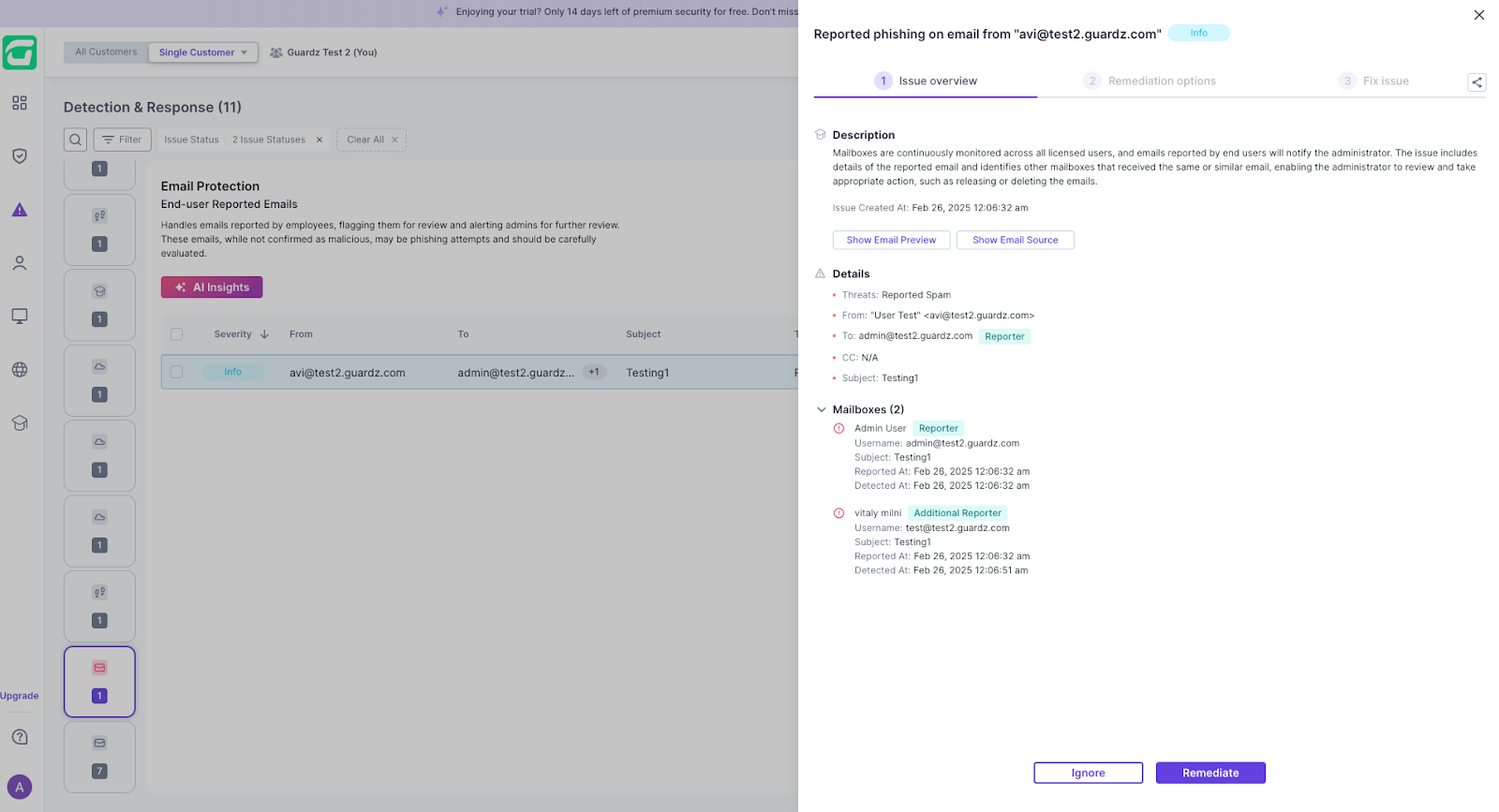
3. Open the Email Protection: End-user Reported Emails issue.
4. Click the reported email. The Issue overview shows:
◦ Details: the threat type, sender, recipient (marked as Reporter) and subject.
◦ Mailboxes: every mailbox that received the same or a similar email, including any additional reporters.
◦ Show Email Preview and Show Email Source, so you can inspect the email.
5. Click Remediate to release or delete the email across the affected mailboxes, or Ignore to close the issue with no action.
Reviewing forwarded emails in quarantine
If a user has already forwarded a simulation email to you, it will be in your quarantine. To review or release it, for example so you can reply to the user:
1. Log in to the Guardz portal.
2. Go to Detection & Response → Issues → Quarantined Emails.
3. Find the forwarded email and review or release it as needed.
If you need any help, please contact Manage Protect Support at support@manageprotect.com or call 1300 657 500 (AU) / 0800 141 481 (NZ).
Was this article helpful?
That’s Great!
Thank you for your feedback
Sorry! We couldn't be helpful
Thank you for your feedback
Feedback sent
We appreciate your effort and will try to fix the article