When MPmail filters inbound mail for a tenant, MX records point to the MPmail gateway rather than to Microsoft. An inbound connector in Exchange Online tells Microsoft 365 that mail arriving from MPmail is trusted, and, when the domain restriction is enabled, causes Exchange Online to reject mail that tries to reach the tenant without passing through the filter first.
This article covers creating that connector manually.
MPmail sending IP ranges
IP Address(es) | Subnet mask | Address span |
83.246.65.0/24 | 255.255.255.0 | 83.246.65.0 – 83.246.65.255 |
94.100.128.0/20 | 255.255.240.0 | 94.100.128.0 – 94.100.143.255 |
173.45.18.0/24 | 255.255.255.0 | 173.45.18.0 – 173.45.18.255 |
185.140.204.0/22 | 255.255.252.0 | 185.140.204.0 – 185.140.207.255 |
| 52.62.114.130 | ||
52.62.125.178 |
Procedure - Exchange Admin Centre
- Sign in to the Exchange admin Centre at https://admin.exchange.microsoft.com.
- Go to Mail flow > Connectors, then select Add a connector.
- Under Connection from, choose Partner organization. Connection to stays as Office 365. Select Next.
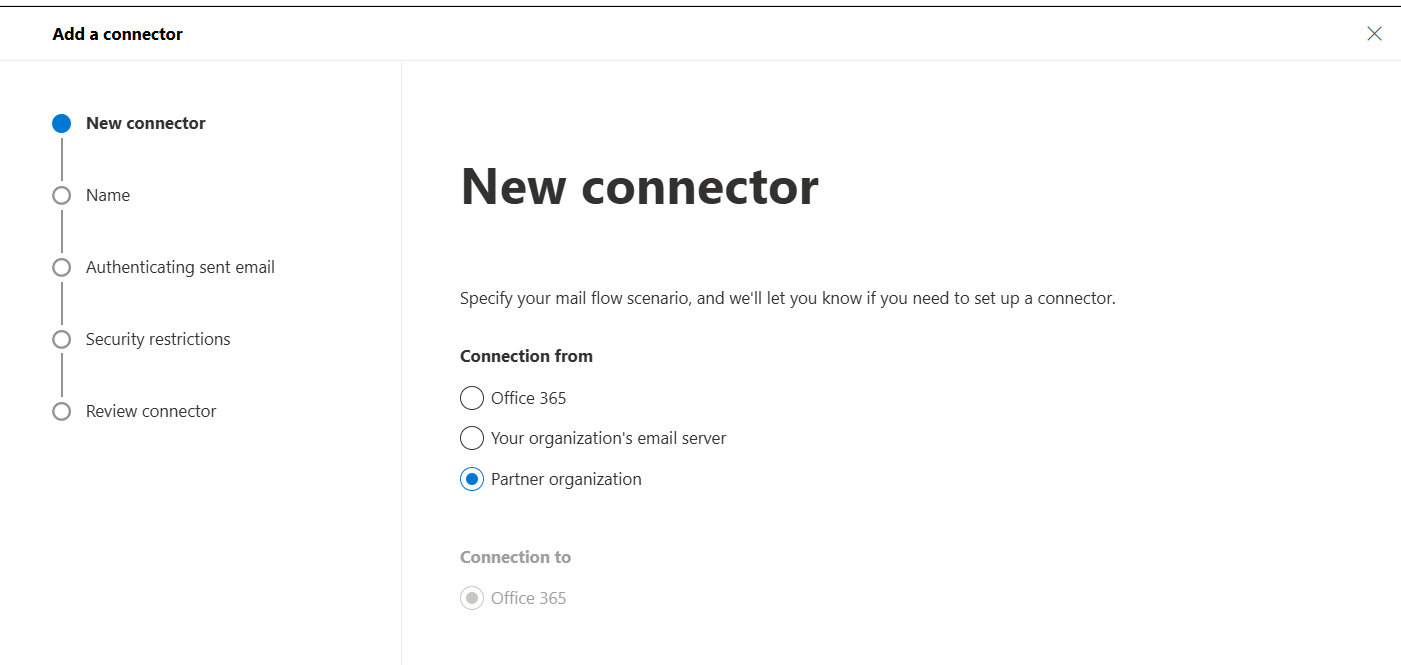
- Give the connector a name that makes its purpose obvious to the next administrator, for example:
MPmail Inbound Connector. Leave Turn it on ticked. Select Next.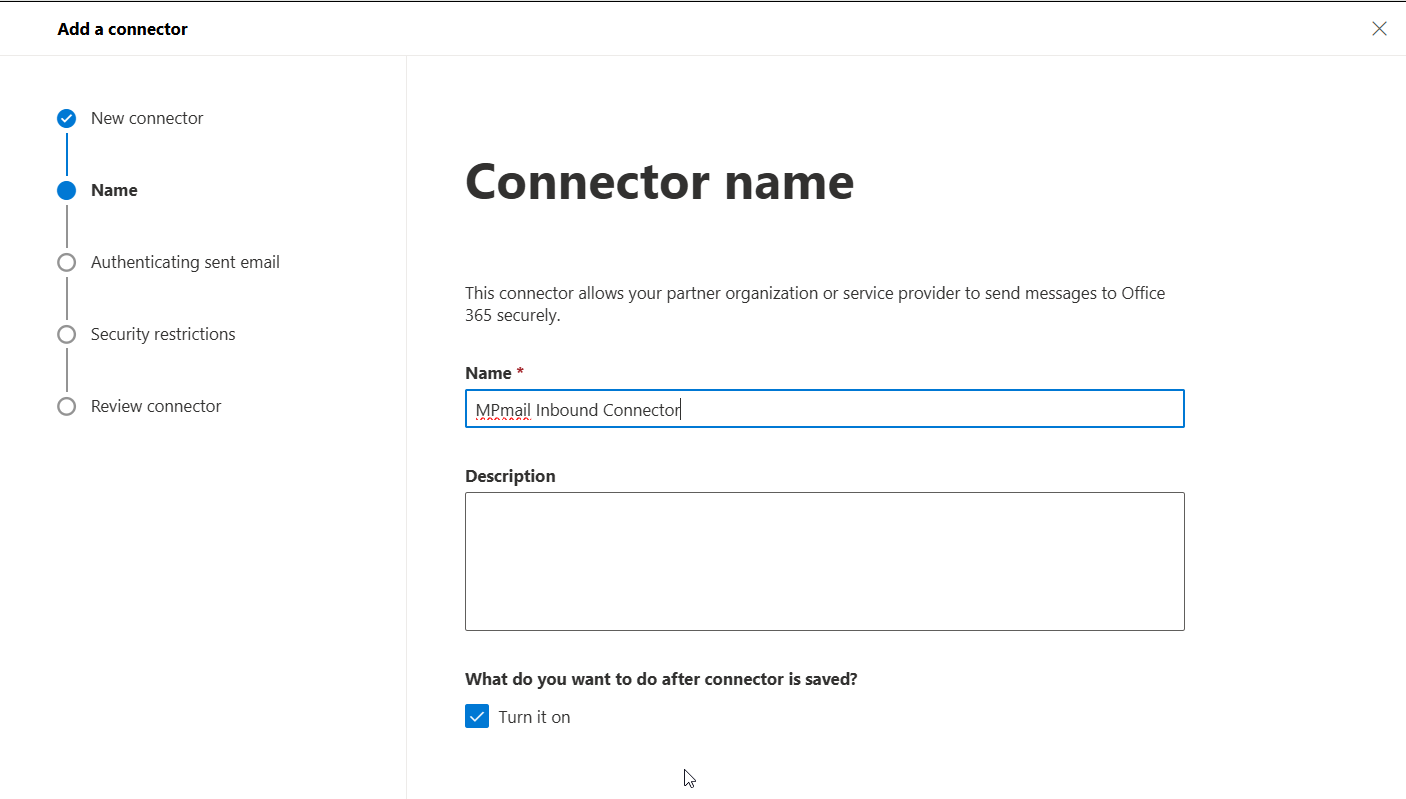
- On Authenticating sent email, select "by verifying that the sender domain matches one of the following domains". Enter and an asterix '*' and select the plus button. This will mean any domain.
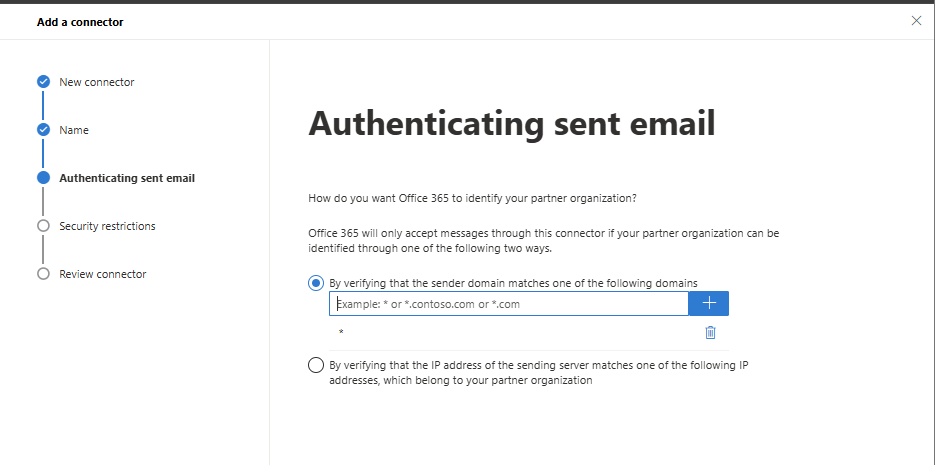
- On Security restrictions:
- Reject email messages if they aren’t sent over TLS recommended. MPmail supports TLS on delivery.
- Reject email messages if they aren’t sent from within this IP address range, this is the setting that actually enforces the bypass block.
Copy and paste the following IP addresses (needs to be done one at a time)83.246.65.0/24 94.100.128.0/24 94.100.129.0/24 94.100.130.0/24 94.100.131.0/24 94.100.132.0/24 94.100.133.0/24 94.100.134.0/24 94.100.135.0/24 94.100.136.0/24 94.100.137.0/24 94.100.138.0/24 94.100.139.0/24 94.100.140.0/24 94.100.141.0/24 94.100.142.0/24 94.100.143.0/24 173.45.18.0/24 185.140.204.0/24 185.140.205.0/24 185.140.206.0/24 185.140.207.0/24 52.62.114.130 52.62.125.178
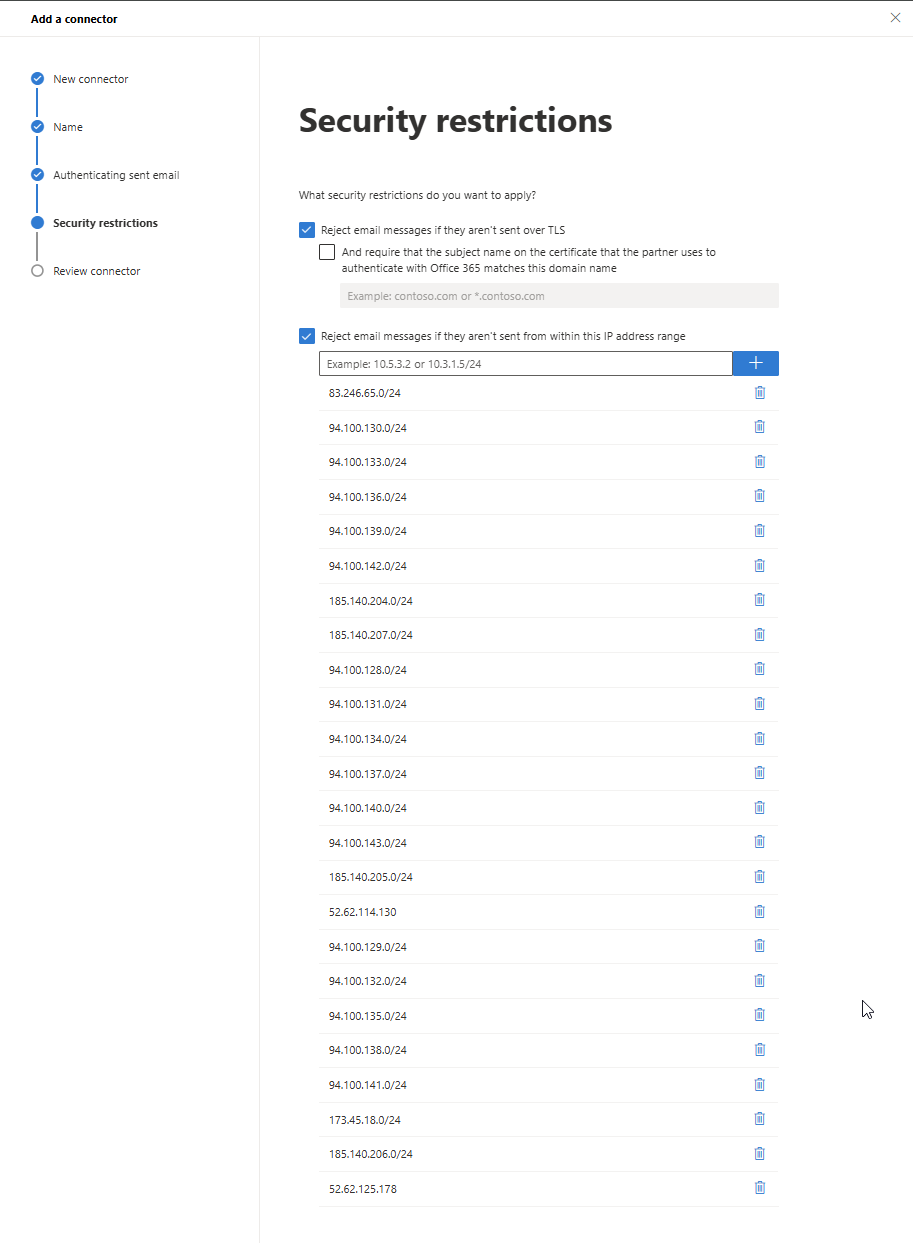
Review the summary and select Create connector, then Done.
Procedure - Exchange Online PowerShell
The equivalent connector can be created in one command via Powershell Exchange Online.
Connect-ExchangeOnline

$SenderIPs = @(
    '83.246.65.0/24'
    '94.100.128.0/24','94.100.129.0/24','94.100.130.0/24','94.100.131.0/24'
    '94.100.132.0/24','94.100.133.0/24','94.100.134.0/24','94.100.135.0/24'
    '94.100.136.0/24','94.100.137.0/24','94.100.138.0/24','94.100.139.0/24'
    '94.100.140.0/24','94.100.141.0/24','94.100.142.0/24','94.100.143.0/24'
    '173.45.18.0/24'
    '185.140.204.0/24','185.140.205.0/24','185.140.206.0/24','185.140.207.0/24'
    '52.62.114.130'
    '52.62.125.178'
)

New-InboundConnector `
    -Name "MPmail Inbound Connector" `
    -ConnectorType Partner `
    -SenderDomains * `
    -SenderIPAddresses $SenderIPs `
    -RestrictDomainsToIPAddresses $true `
    -RequireTls $true `
    -Enabled $true
To review an existing connector:
Get-InboundConnector | Format-List Name,Enabled,ConnectorType,SenderDomains,

   SenderIPAddresses,RestrictDomainsToIPAddresses,RequireTls,EFSkipLastIP
Next Steps
Bypassing Microsoft 365 spam
Troubleshooting
Symptom | Likely cause |
External mail rejected with 5.7.1 Relay Access Denied | An accepted domain’s MX still points to Microsoft while the IP restriction is enabled, or an MPmail range is missing from the connector. |
Some mail delivers, some rejected | Incomplete IP range list, MPmail may have added ranges since the connector was built. |
Mail delivers but is quarantined by Microsoft as spam | Double filtering; review the anti-spam policy and enable Enhanced Filtering. |
Connector appears to have no effect | Connector disabled, or another partner connector with a broader scope is matching first. Review all inbound connectors. |
Was this article helpful?
That’s Great!
Thank you for your feedback
Sorry! We couldn't be helpful
Thank you for your feedback
Feedback sent
We appreciate your effort and will try to fix the article