July Product Updates
Created by Claire Walker, Modified on Thu, 13 Aug at 7:31 AM by Claire Walker
Advanced AI Detection for Secured (Encrypted) Emails
Check Point Email Security now includes a dedicated AI engine for detecting phishing in secured (encrypted) emails — such as those protected with Microsoft Purview Message Encryption — which cannot be fully inspected because their content is only accessible after the recipient authenticates via a secured portal.
Previously, encrypted emails from new senders distributing multiple messages for the first time were defaulted to "suspected phishing", which could generate unnecessary alerts for legitimate communications. The new AI engine evaluates multiple characteristics of secured emails to determine whether they should be classified as phishing, suspicious, or clean — reducing false positives while strengthening protection.
To modify this behaviour, navigate to:
The new AI-based detection engine is the default workflow unless you have previously modified this setting.
Extended SPF and DKIM Validation for Custom Notification Sender Domains
Check Point Email Security has extended SPF and DKIM validation to cover all custom sender domains used for end user notifications, helping ensure messages pass DMARC validation and reach users reliably.
What's changed:
- SPF validation is now also enforced for the End User Quarantine Report (daily digest), completing coverage across all end user notifications.
- DKIM validation is now checked whenever a custom sender domain is configured for any end user notification, giving administrators visibility into potential delivery issues before notifications are sent.
- If SPF validation passes but DKIM fails, the custom sender domain will still be applied — but administrators will be notified of the DKIM failure.
Security Settings › User Interactions › Quarantine › End User Quarantine Report › Sender
If SPF validation has not passed, update your DNS configuration to include
include:spfa.cpmails.com. Customers have until 19 August to complete this update. After the grace period, Check Point will automatically revert the quarantine report sender to a checkpoint.com domain to ensure reliable delivery.Octiga No Longer Requires Global Administrator Role
Octiga has redesigned its platform permissions so it no longer requires the Global Administrator directory role in your Microsoft Entra tenants. This follows the principle of least privilege: reducing the permissions the application requires while maintaining the same functionality.
What to expect during migration:
- A one-time automated maintenance process will be performed for each customer tenant.
- A temporary Microsoft Entra application will be created to perform the required permission changes.
- This temporary application will remove the Global Administrator directory role from the existing Octiga application, then be automatically deleted once complete.
- You may briefly notice this temporary application in your tenant during the maintenance window — this is expected behaviour.
AI Culture Assessment & Two New Training Modules
MPaware has launched two new offerings to help your clients understand where they stand on AI adoption and build the habits needed to scale it securely. These are available exclusively to MPaware partners via the portal.
1. AI Culture Assessment
Gives clients a measurable baseline for their current state of AI adoption so they can understand how AI is being used across their organisation today.
2. Complementary training modules:
- AI Culture Is Everyone's Responsibility - Helps employees use AI securely and contribute to responsible adoption.
- Managing a Culture of AI Readiness - Designed for leaders: setting guardrails, encouraging adoption and building good habits.
Storage Usage Card
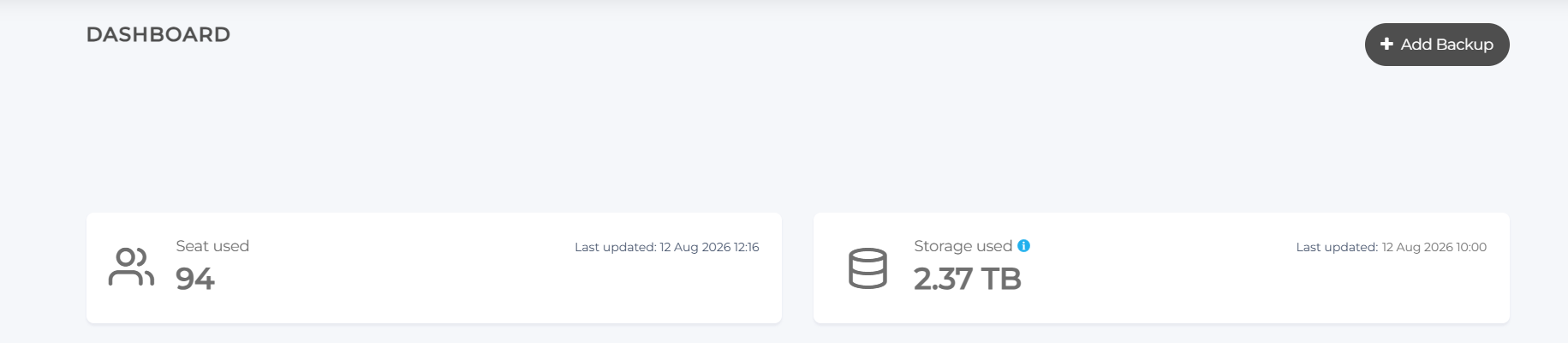
A new Storage Usage card now displays on both the partner and end-user portal dashboards. Partners can view total storage consumption across all managed organisations, while clients can track their own usage against their allocated limit.
MFA Now Required
As of 1 July 2026, all users are required to use multi-factor authentication when logging in to NinjaOne SaaS Backup. If MFA has not been set up, users will be prompted to activate it during login.
- If you enforce SSO via Azure or Google, administrators can activate the Skip MFA switch in NinjaOne SaaS Backup so users authenticate through their SSO provider only.
Backup Summary Report Now Includes Private Chat
NinjaOne SaaS Backup now includes Private Chat backup in the organisation-level Backup Summary Report (BSR). The BSR displays backup health and coverage across all users and workloads for the previous month. This addition provides broader workload coverage and a more complete view of backup activity.
Audit Log Download Improvements
Audit log downloads are now split into smaller files grouped by month, rather than generating a single large file. This resolves previous performance issues and download timeouts; users can now download completed monthly segments as they become available, rather than waiting for the entire export to finish.
Attacker Activity Now Visible in the Incident Timeline
Autonomous Analyst findings now appear directly on the incident timeline, showing exactly what the attacker did, when they did it, and in what order. Events such as initial access, credential compromise, and lateral movement are each tagged by attack stage - click any event to see what happened and the evidence behind it.
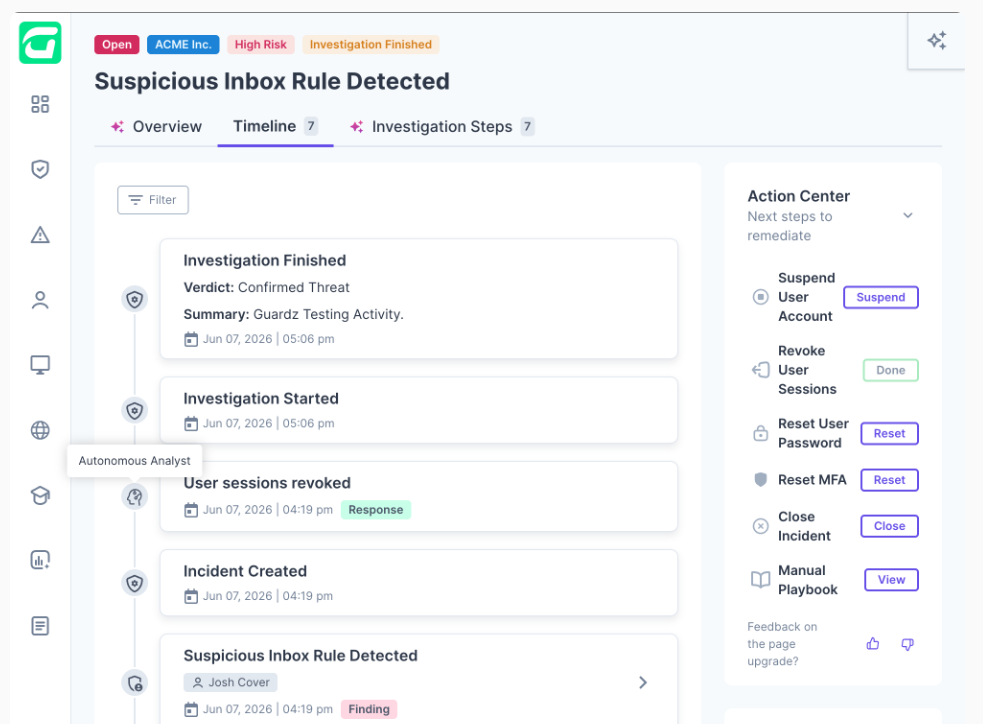
Incident timeline with Autonomous Analyst findings and Action Center
Also new in the timeline:
- Colour-coded badges: distinguish Findings, Investigations, Responses, Status Changes, and MDR Comments at a glance
- Event source: see who produced each event: the Autonomous Analyst, MDR Analysts, an administrator, or one of your security controls
- Filters: narrow the timeline by source or event type in one click
Incident Response Actions: Reset Password & Reset MFA
Two new actions are rolling out under the Incident Action Center — Reset User Password and Reset MFA — enabling faster containment directly from within an incident without switching tools.
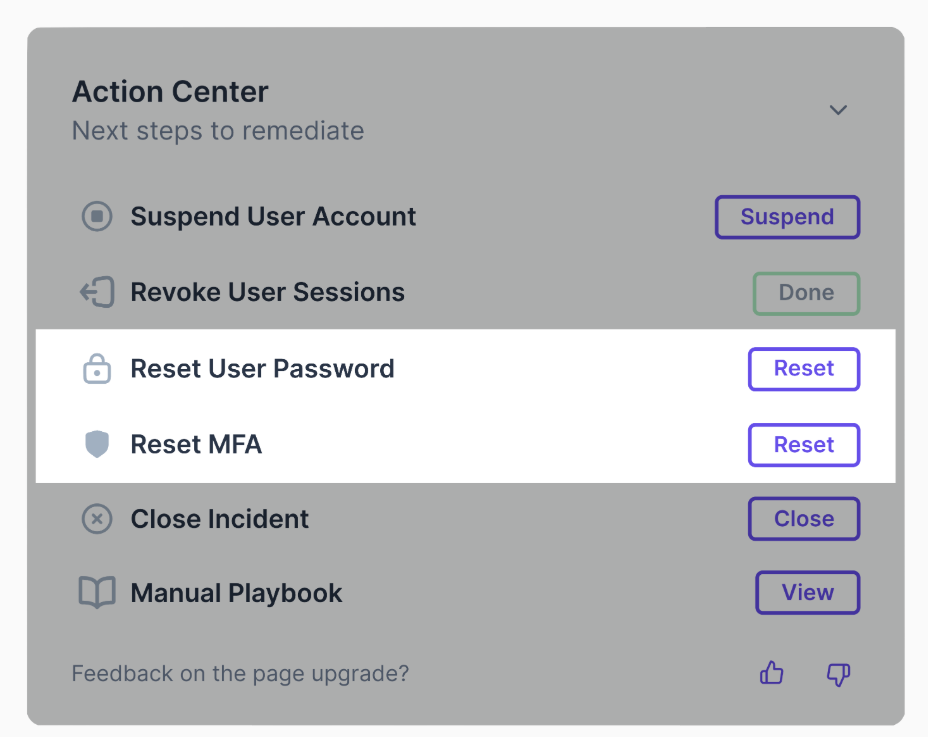
The updated Action Center with Reset Password and Reset MFA actions highlighted
Microsoft Licence Information Now Available
You can now view, filter, and export users by their Microsoft licence directly within Guardz. Licence information is also displayed on each User Card for individual visibility. Licence data syncs hourly, and the Users table displays the last sync time.
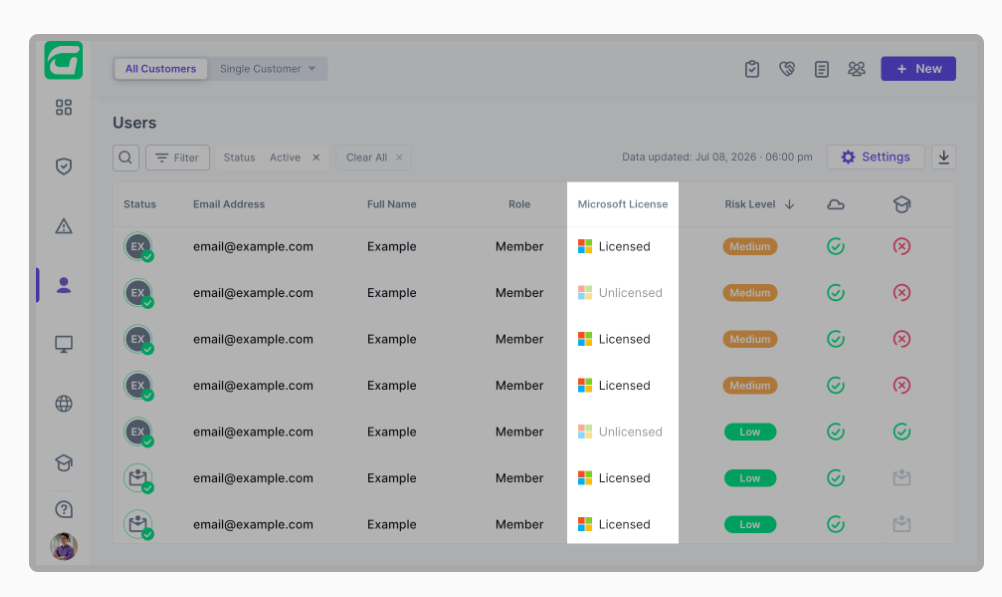
The Users table with the new Microsoft Licence column
Was this article helpful?
That’s Great!
Thank you for your feedback
Sorry! We couldn't be helpful
Thank you for your feedback
Feedback sent
We appreciate your effort and will try to fix the article