Description
This article will show you as a partner in CIPP how to add a new Microsoft tenant using the per tenant authorization method.
Requirements
- A Global Administrator account in the customers Microsoft tenant
- Admin access to your own CIPP instance
The Process
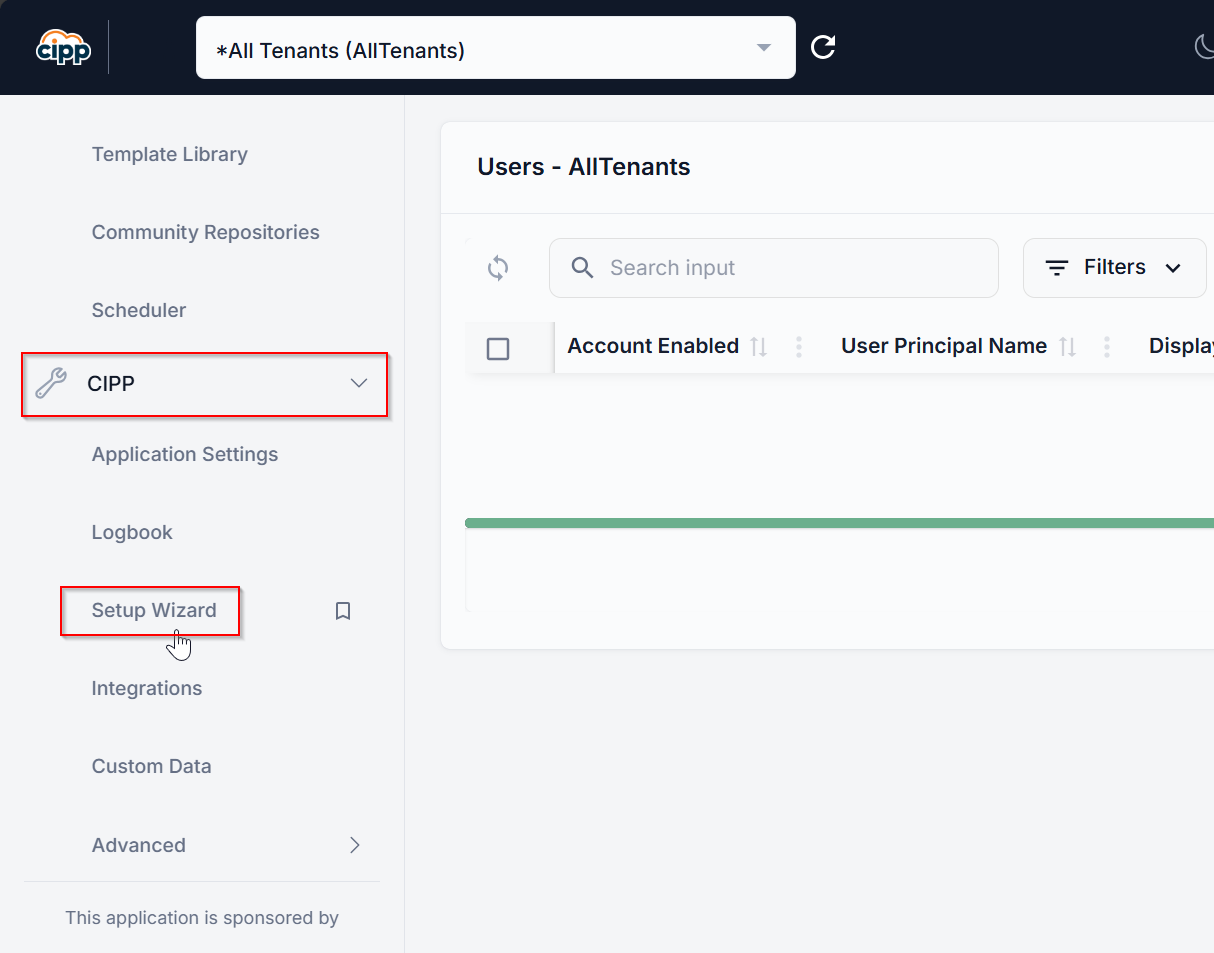
Under the CIPP tab, select "Setup Wizard"
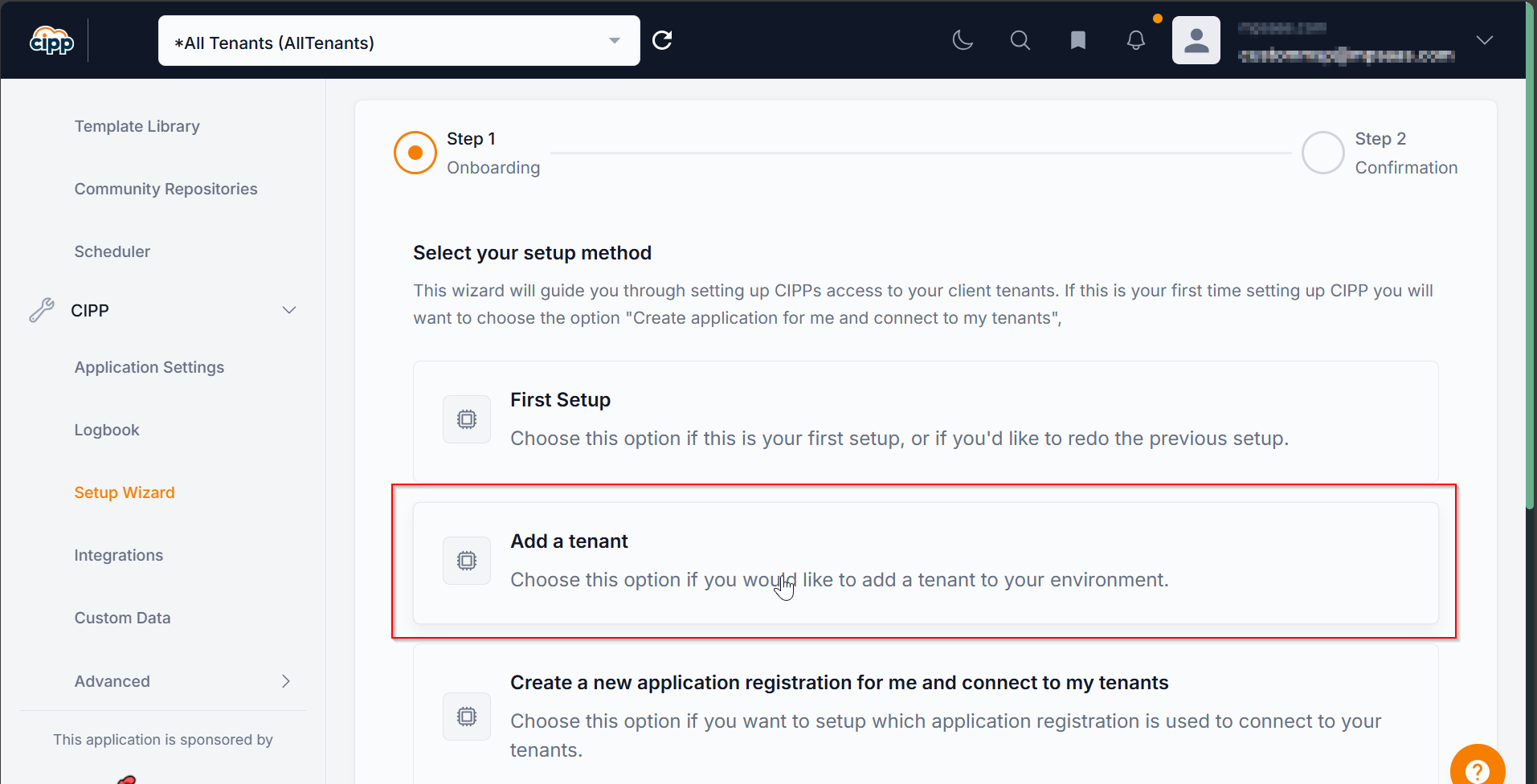
Select "Add a tenant", then "Next Step".
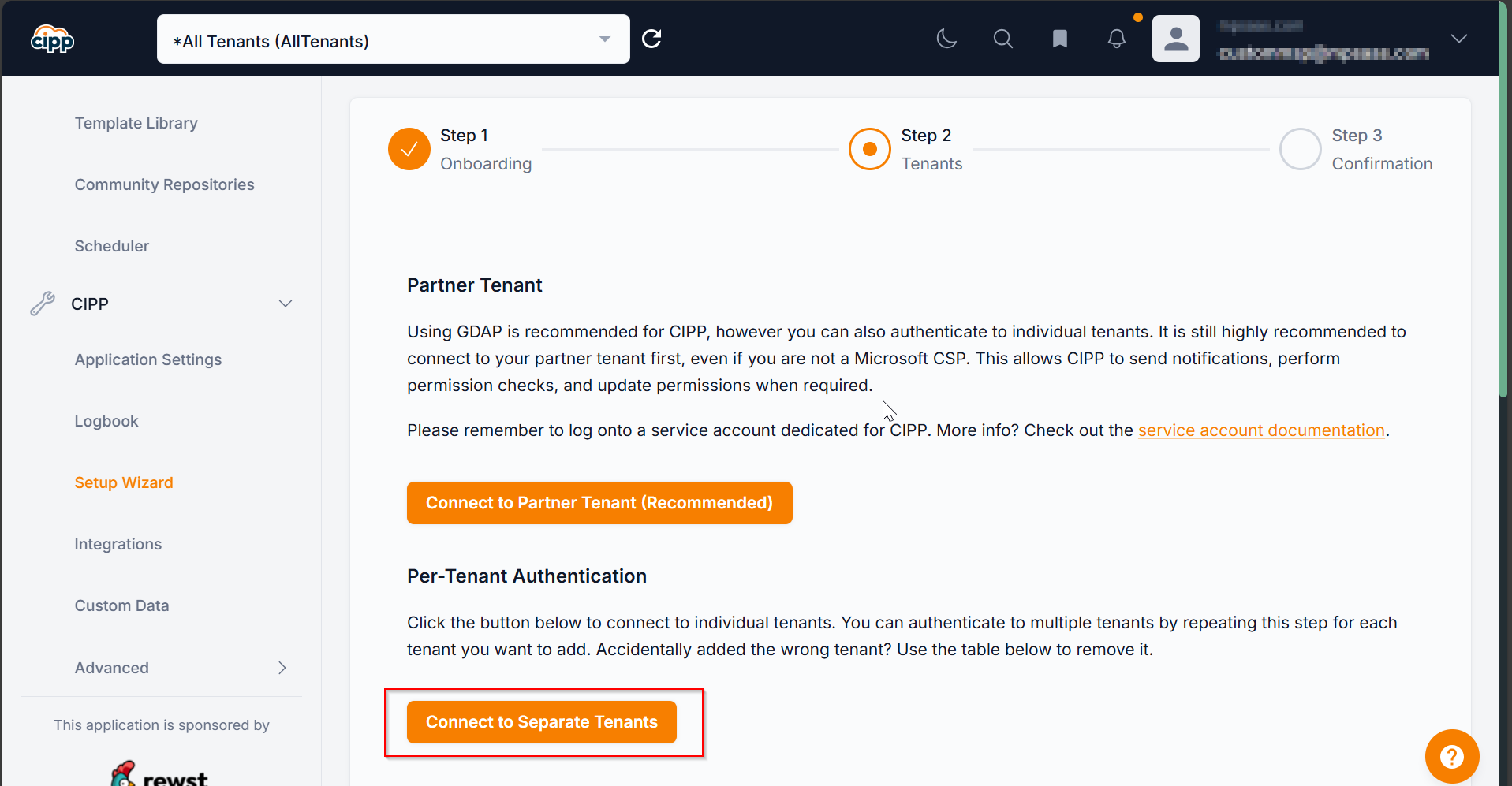
Select "Connect to Separate Tenants"
A separate pop-up window will open (You may need to allow pop-ups in the browser)
Using a Global Administrator account in the customers Microsoft tenant you are wishing to add, sign in and accept the App registration.
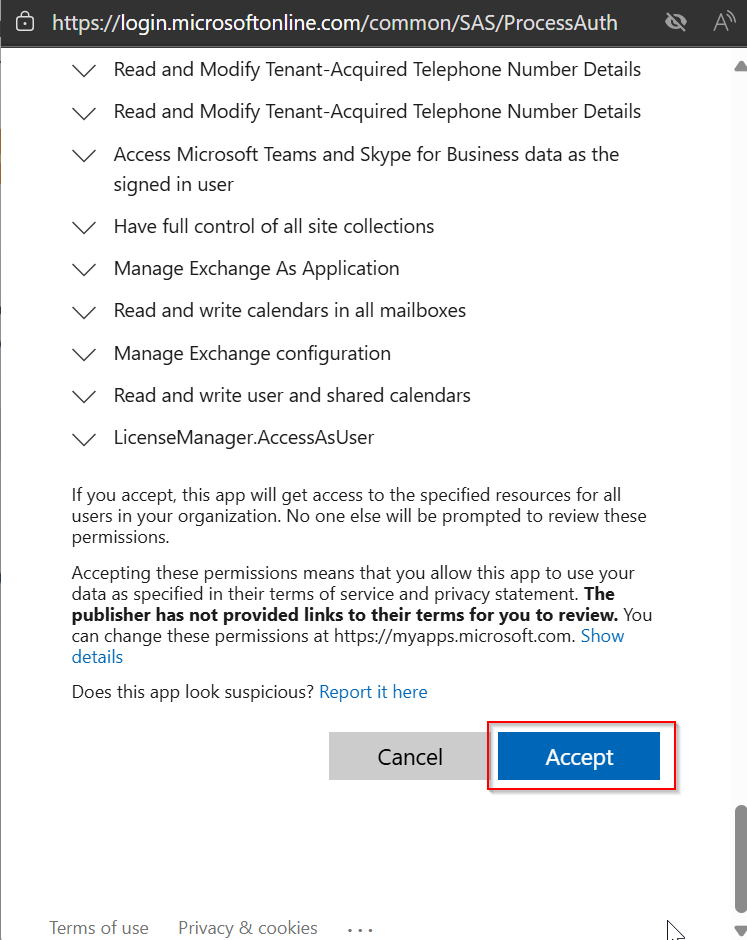
After a couple of minutes you can refresh the authenticated tenants window and you will see the customers tenant added.
You can repeat the above steps to add multiple tenants at a time.
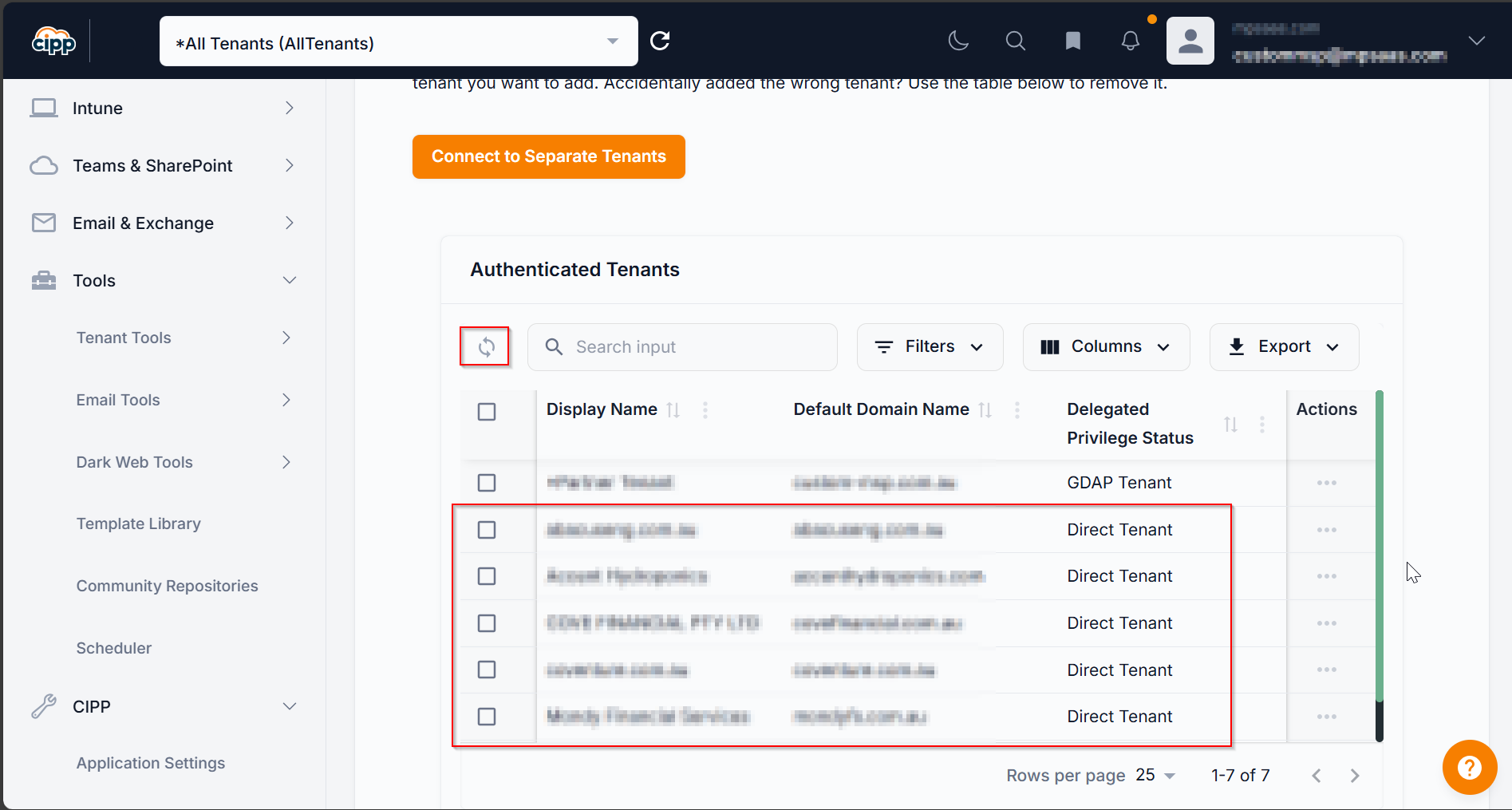
Once you have added all the tenants you require, you can select "Next Step" to complete the process.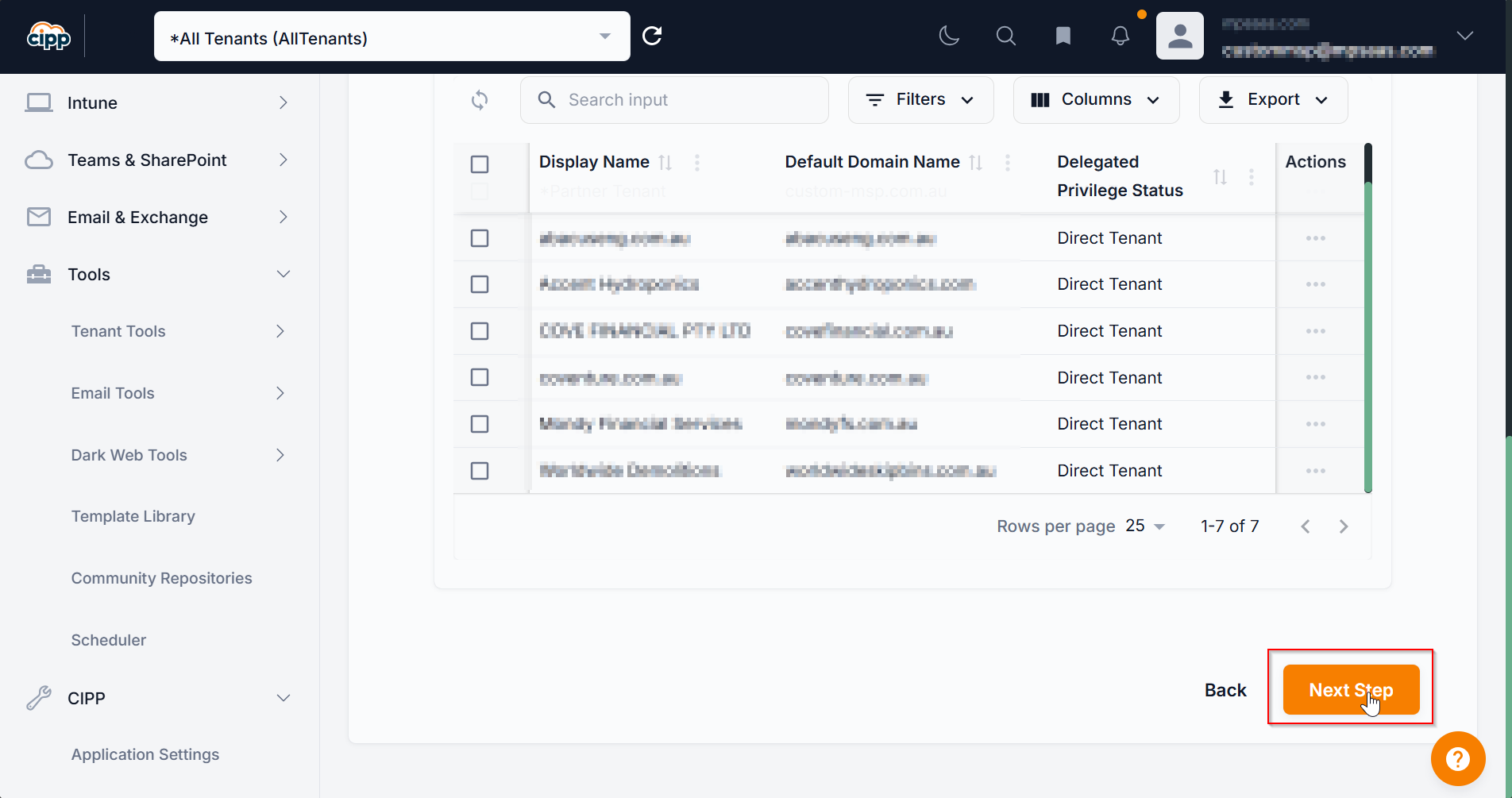
Select "Submit" to save changes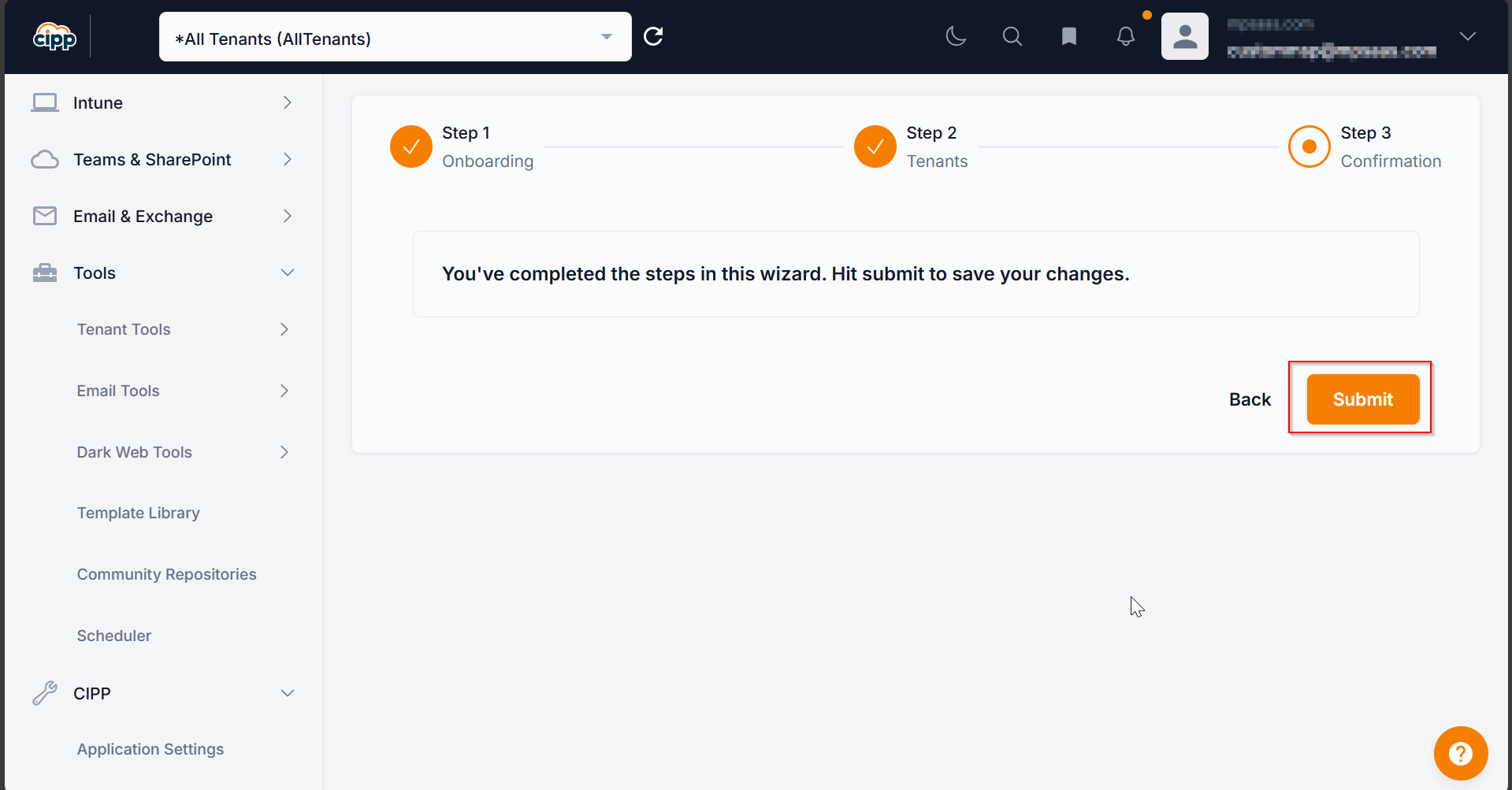
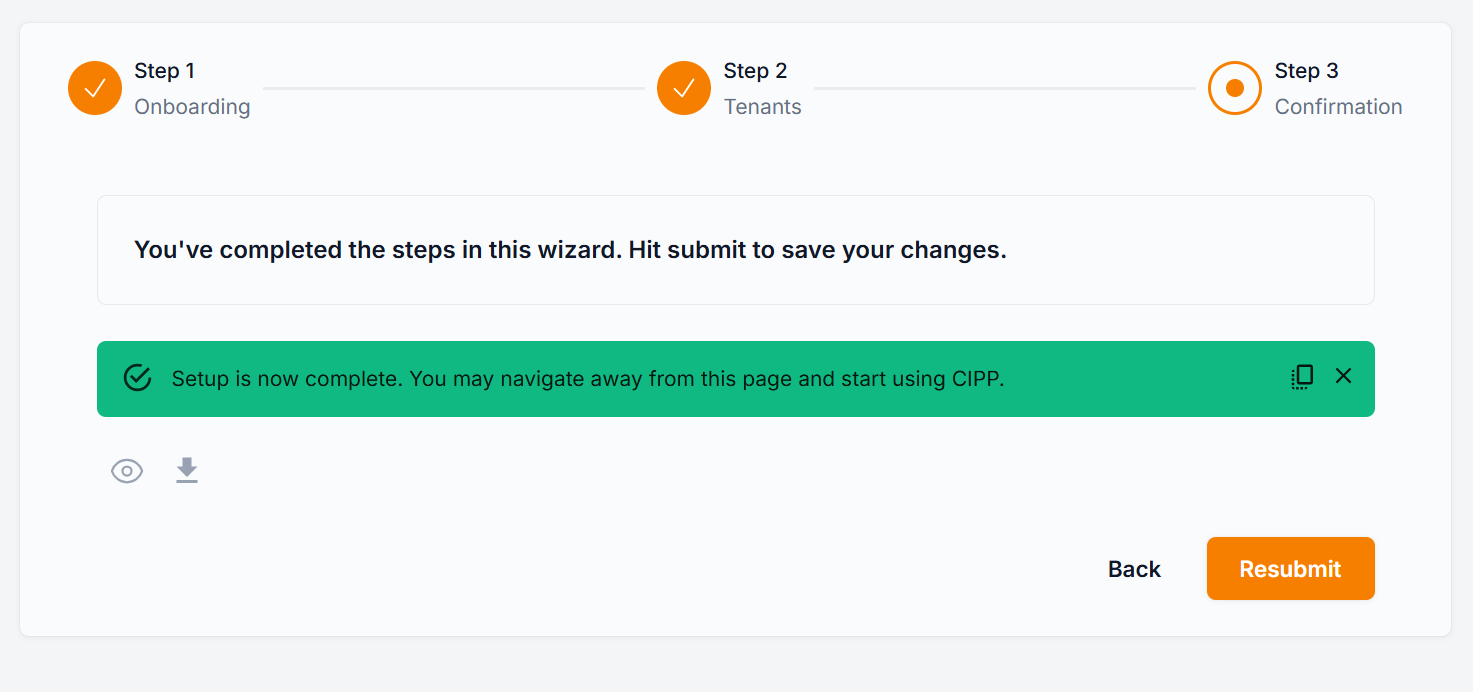
Once completed you will see a "Setup is now complete" prompt, and you have successfully added the tenant(s) to CIPP.
Was this article helpful?
That’s Great!
Thank you for your feedback
Sorry! We couldn't be helpful
Thank you for your feedback
Feedback sent
We appreciate your effort and will try to fix the article