Description
This article explains how to remove Avanan from your Microsoft 365 tenancy
Requirements
- Admin access to the Microsoft 365 tenancy
- MSP Admin access to the Avavan portal
The Process
Login to the Avanan customer portal, either from the MSP Dashboard or by direct login
Step 1: Fully remove the current Check Point Avanan instance
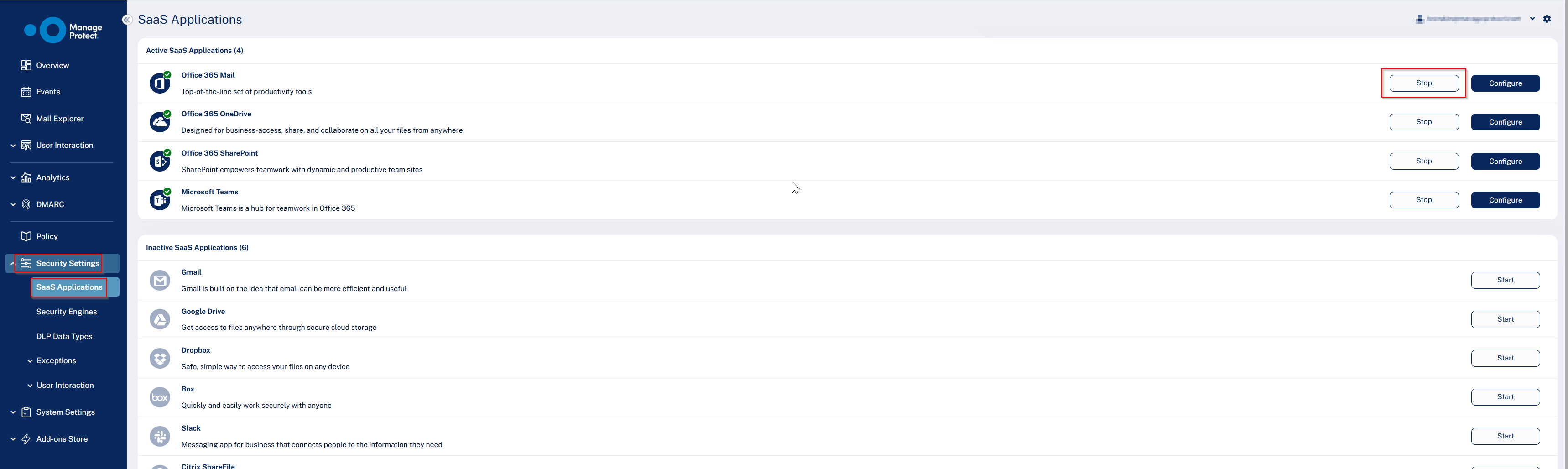
Navigate to the Customer Portal for the tenant then Settings > SaaS Applications > Click ‘Stop’ on the mail SaaS application (and any others that are configured).
a. This will trigger Avanan to uninstall from the tenant.
Delete the tenant from the MSP Dashboard within Avanan (right click on the 3 dots to the far right of the tenant > delete).
Step 2: Validate Check Point Avanan has been fully removed
Usually, all components will be removed after completing the prior steps but it is recommended to verify manually as well.
Delete the Avanan Application within the Cloud tenant.
a.entra.microsoft.com> Enterprise Applications > Click into the Avanan App > Properties > Delete (if it is still present 5–10 minutes after stopping the SaaS application).Remove Avanan Transport Rules.
a.admin.exchange.microsoft.com> Mail Flow > Rules > Remove all Avanan Rules.Remove Avanan Connectors.
a.admin.exchange.microsoft.com> Mail Flow > Connectors > Remove all Avanan Connectors.Remove Avanan Groups.
a.admin.exchange.microsoft.com> Recipients > Groups > Remove all Avanan Groups.Remove Avanan Journal Rule.
a.https://purview.microsoft.com/datalifecyclemanagement/exchange/journalrules> Remove Avanan Rule.
All of these rules that are created during onboarding, we are simply verifying each has been removed.
Was this article helpful?
That’s Great!
Thank you for your feedback
Sorry! We couldn't be helpful
Thank you for your feedback
Feedback sent
We appreciate your effort and will try to fix the article